# Image(s) to Video

## Summary

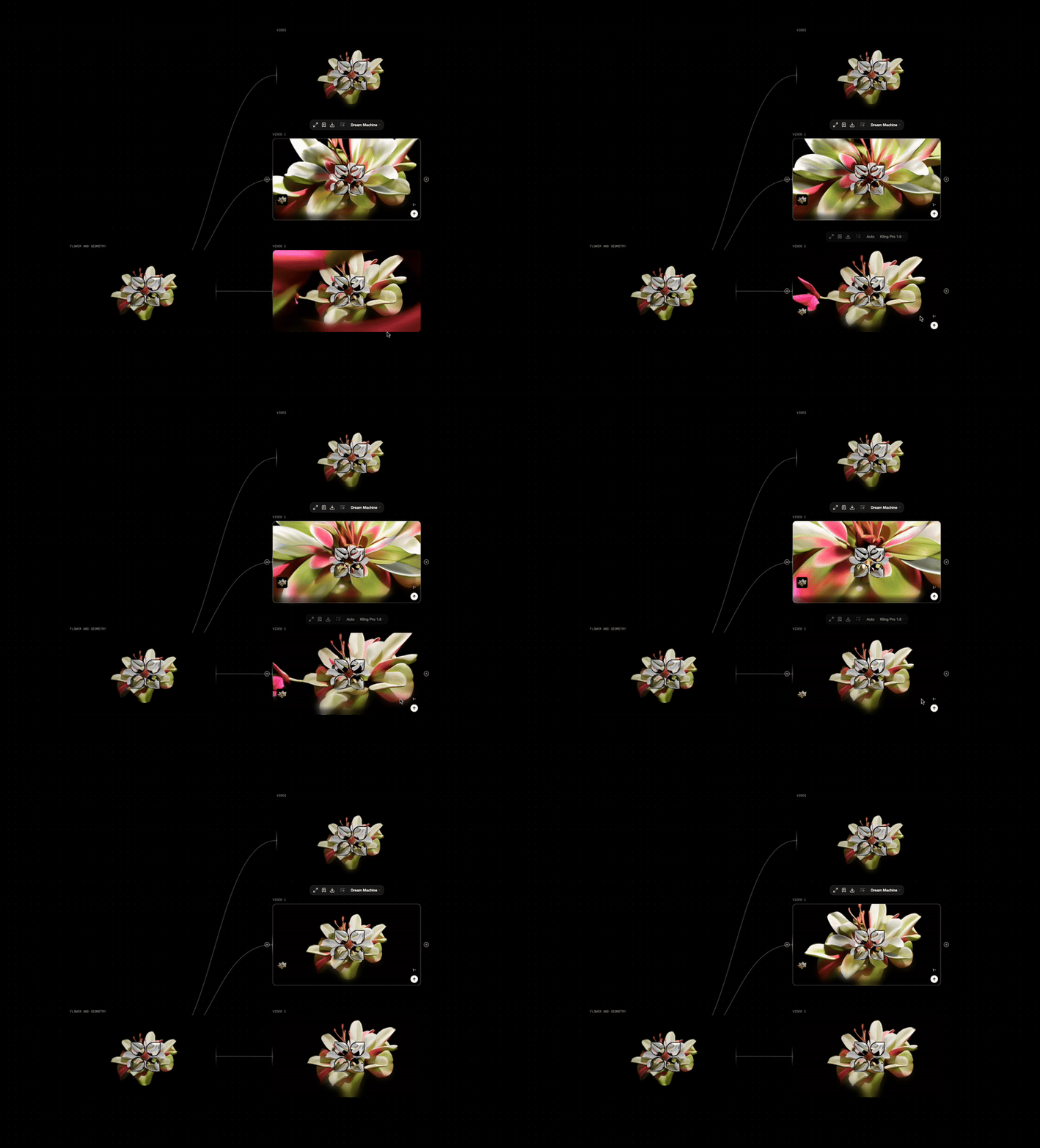
Image-to-Video models generate videos by taking a single image or multiple images as input, using the input image(s) to guide scene continuity, motion, and transitions, resulting in dynamic video content that expands the static visuals into a moving narrative while maintaining visual consistency.&#x20;

<figure><img src="https://526296967-files.gitbook.io/~/files/v0/b/gitbook-x-prod.appspot.com/o/spaces%2FWthH0GpcCHwVdtbvahZS%2Fuploads%2Fy4FdoUEsmYxofdQl0KZs%2FScreenRecording2025-02-24at2.40.52PM-ezgif.com-video-to-gif-converter.gif?alt=media&#x26;token=e8b5f2a4-63cd-4a4e-b232-f0f5ed65e755" alt=""><figcaption></figcaption></figure>

### Parameters

These are parameters that are applicable to all our base models.&#x20;

<table><thead><tr><th width="221">Parameter</th><th>Type</th><th>Effect on Output</th></tr></thead><tbody><tr><td>Prompt</td><td>Text</td><td>The text prompt is processed through the selected model.</td></tr><tr><td>Seed</td><td>Seed</td><td>The seed is a deterministic number that indexes generations from the model. It's typically randomized, but you can set a seed if there's a particular output you're looking for! Keep in mind that all parameters must be the same in order for a given seed's output to persist.</td></tr></tbody></table>

<figure><img src="https://526296967-files.gitbook.io/~/files/v0/b/gitbook-x-prod.appspot.com/o/spaces%2FWthH0GpcCHwVdtbvahZS%2Fuploads%2FYFeK1YuGUowX4PfnU1BG%2FScreenRecording2025-02-24at4.02.15PM-ezgif.com-video-to-gif-converter.gif?alt=media&#x26;token=9b5ed9b0-2376-4560-a007-65484f3b3eb2" alt=""><figcaption></figcaption></figure>

### Images to Video[​](https://www.florafauna.ai/docs/Nodes/Image/Frames%20to%20Video#summary)

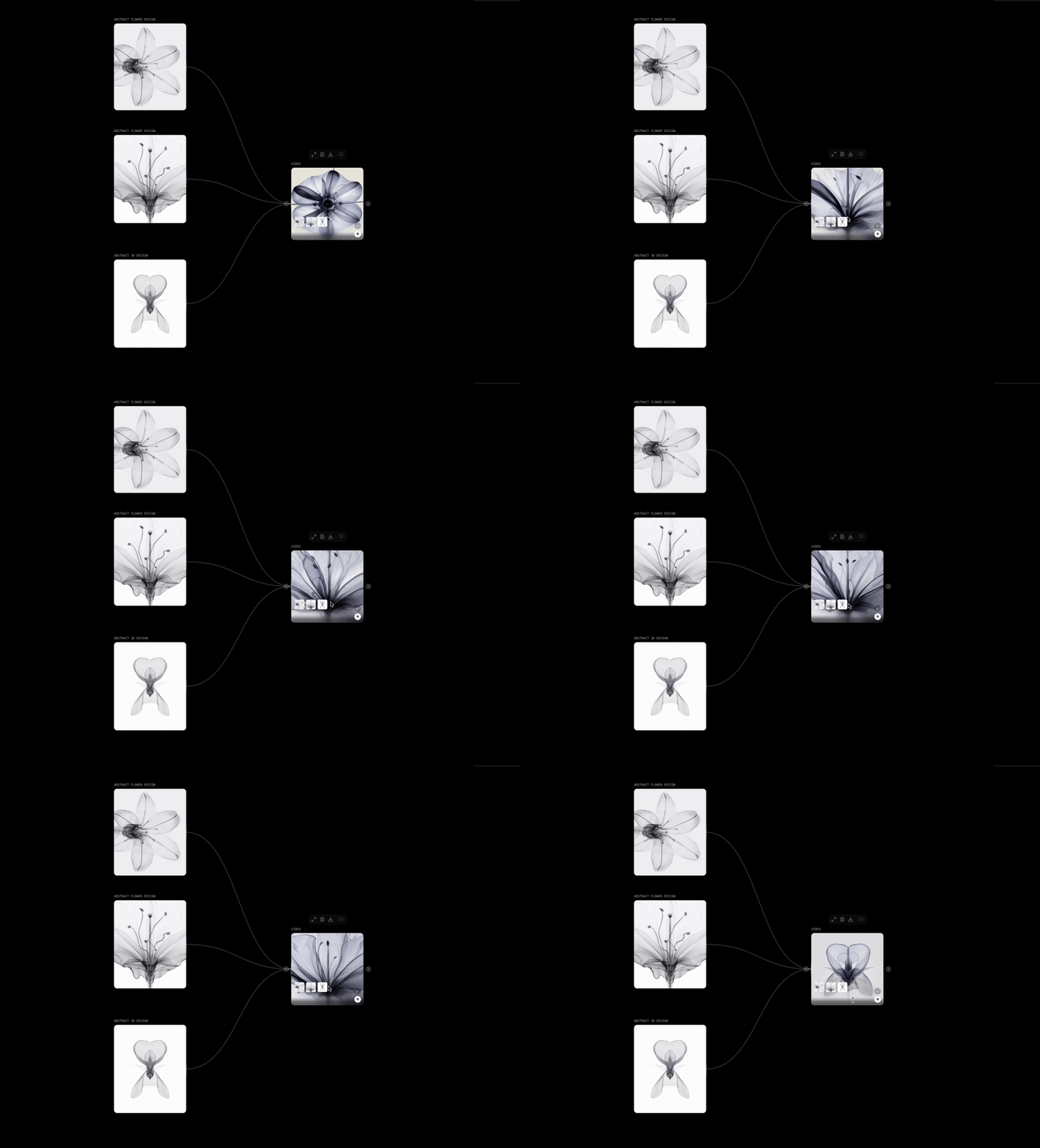
The Images to Video node generates a video by connecting multiple frames. You can input up to 9 frames and the model will fill in the gaps! It primarily uses IP-Adapter based morphing techniques that's happening in the backend.&#x20;

You can interact with it in a number of ways:

* Input images by clicking the upload button in the node itself
* Connect any image output to the node and it'll populate the images section
* Reorder or delete images once populated
* Use the prompt to help guide the output!

### How to use

Here are some example workflows using Text to Video in our community page:

* [Timelapse Video Creation](https://www.google.com/url?q=https://www.florafauna.site/projects/join/70589d3a-347c-4949-8813-1721d3afa93c\&sa=D\&source=editors\&ust=1740430100011251\&usg=AOvVaw1KUXwYB4R6fet7GcKP9cKl)
* [Floral Framed to Video Introduction](https://www.florafauna.site/projects/join/41495c6f-2565-4982-b1e2-3c40a2b7a5f8)