> For the complete documentation index, see [llms.txt](https://docs.flora.ai/llms.txt). Markdown versions of documentation pages are available by appending `.md` to page URLs; this page is available as [Markdown](https://docs.flora.ai/nodes/3d-node.md).

# 3D Node

Generate or import 3D models, then stage and capture them for your workflow

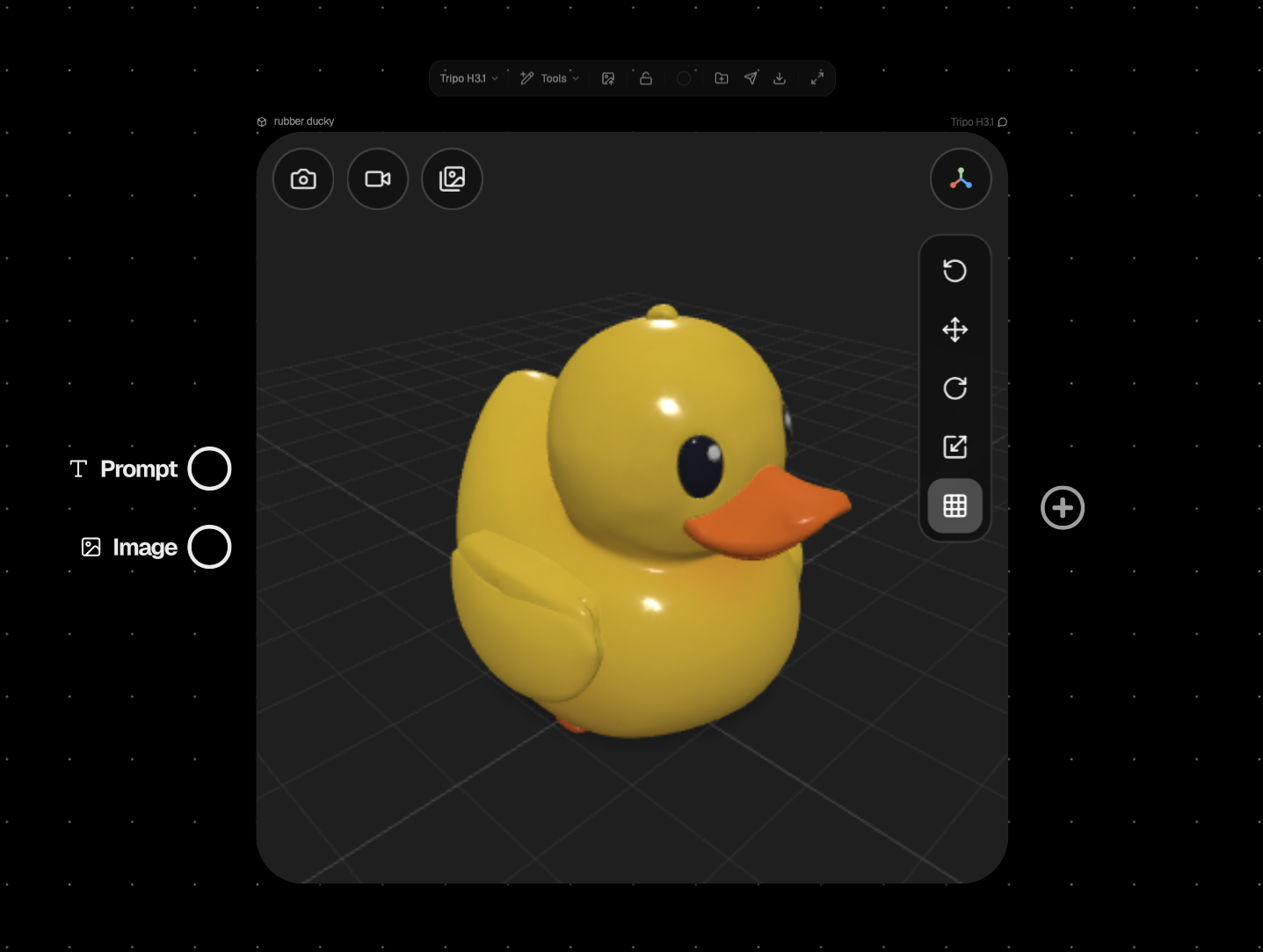
The 3D Node brings 3D assets onto the FLORA canvas. Generate a model from a text prompt, a reference image, or several reference views—or refine a 3D asset you already have—then orbit, stage, and capture it in a live viewer, turning a single 3D asset into stills, turntables, and video that feed the rest of your workflow. Texture support depends on the model and its settings.

## Conversion Types

The 3D Node switches mode based on what you connect to it and which model you pick:

* [**Text to 3D**](/nodes/3d-node/text-to-3d.md) — describe an object and generate a textured model from the prompt alone
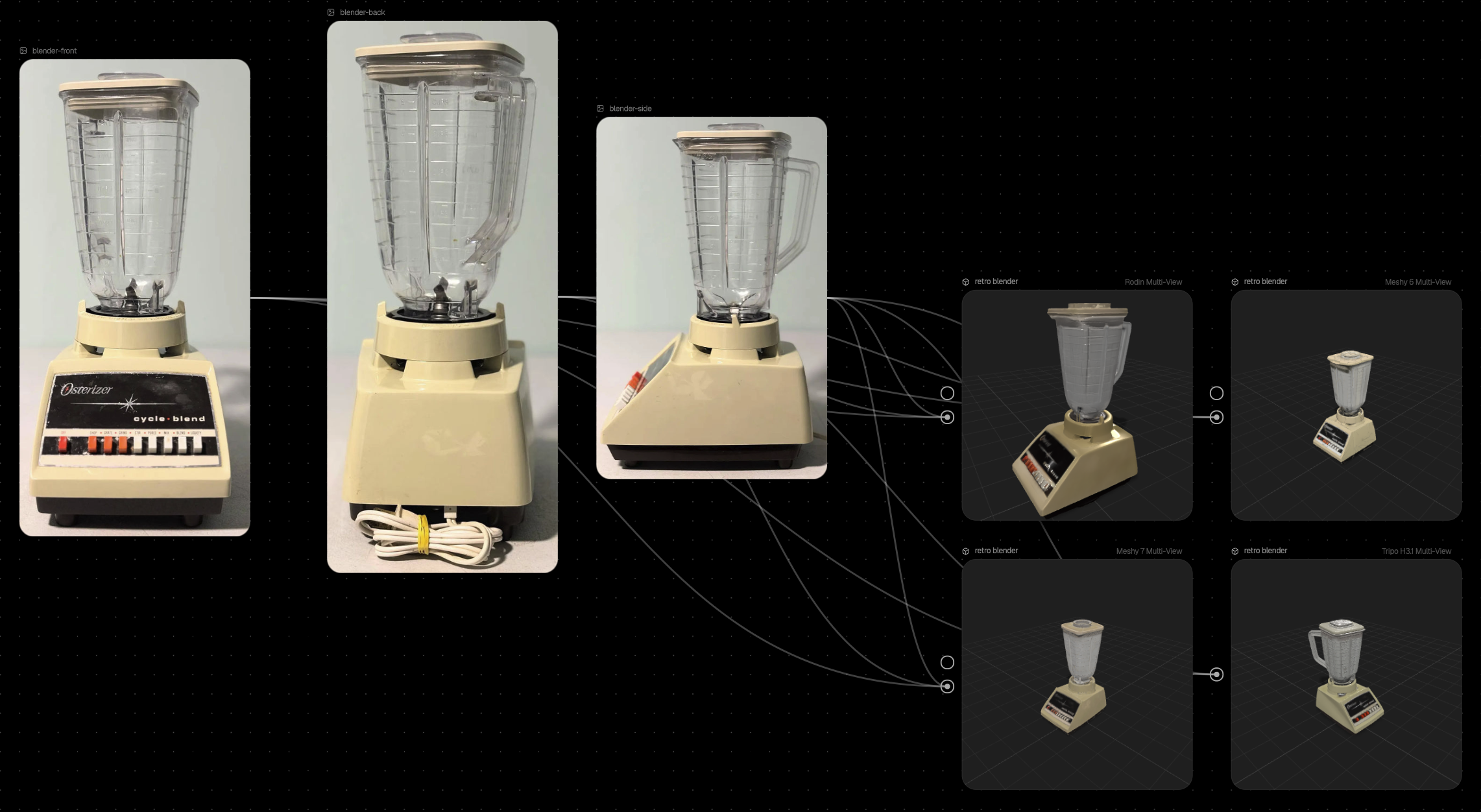
* [**Image to 3D**](/nodes/3d-node/image-to-3d.md) — reconstruct a model from one reference image, or from two to four views of the same object with a **Multi-View** model
* [**3D to 3D**](/nodes/3d-node/3d-to-3d.md) — remesh, retexture, or segment an existing 3D asset by connecting another 3D Node

Each page lists how to connect inputs, what to expect, and model-specific limits. For the full list of models and what each accepts, see [3D Models](/models/3d-models.md).

Beyond generation, the node also lets you:

* **Import your own GLB** — drag and drop an existing textured model onto the canvas
* **Orbit, stage, and light** — orbit/zoom/fly navigation, move/rotate/scale gizmos, draw modes, and controls for the ground plane, shadows, and model rigs
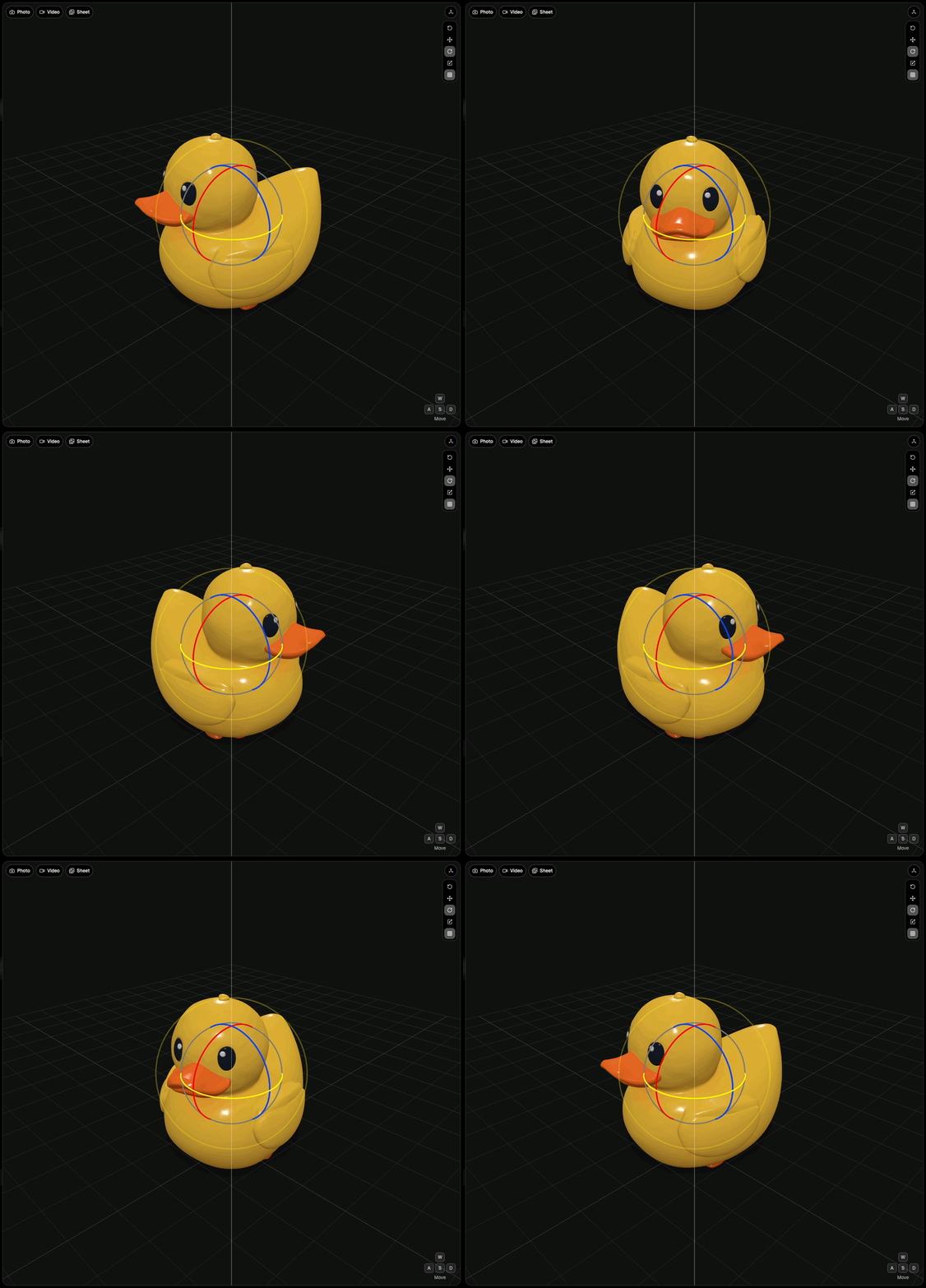
* **Capture to 2D** — turn the staged scene into a photo, a video recording, or an 8-view turntable sheet
* **Download in multiple formats** — GLB, OBJ, STL, PLY, or USDZ, converted in your browser

***

## Getting Started

{% stepper %}
{% step %}
**Add the Node**

Press **3** on the canvas, or open the add-node menu and choose **3D**.
{% endstep %}

{% step %}
**Pick a Model**

Choose a 3D model from the model picker in the node's header. The node's input handles update automatically to match what that model accepts—a prompt, an image, several images, or another 3D asset.
{% endstep %}

{% step %}
**Provide Inputs**

Type a prompt directly into the node (or connect a text node), connect image nodes to the image input, or connect a 3D Node for 3D-to-3D models.
{% endstep %}

{% step %}
**Run**

Click **Run**. Generation typically takes around 5 minutes—hover the Run button beforehand to see the estimated credit cost.
{% endstep %}
{% endstepper %}

<figure><img src="https://526296967-files.gitbook.io/~/files/v0/b/gitbook-x-prod.appspot.com/o/spaces%2FWthH0GpcCHwVdtbvahZS%2Fuploads%2Fgit-blob-029030e3ee9751088950b58f664ef1b82b700e8a%2F3D-Node.png?alt=media" alt=""><figcaption></figcaption></figure>

***

## The 3D Viewer

Hover over or select a 3D Node and its still preview comes alive as an interactive viewer, right inside the node.

<figure><img src="https://526296967-files.gitbook.io/~/files/v0/b/gitbook-x-prod.appspot.com/o/spaces%2FWthH0GpcCHwVdtbvahZS%2Fuploads%2Fgit-blob-b4f69d611465ea58e4ca04b6f1bc5b16ac594a00%2Frotate-ducky-3D.gif?alt=media" alt=""><figcaption></figcaption></figure>

### Navigation

* **Orbit** — click and drag to rotate around the model
* **Zoom** — scroll to move closer or further away
* **Fly** — use **W / A / S / D** to move the camera through the scene

### Tools

The viewer's toolbar (in the node header, and directly in the viewport) gives you:

* **Reset view** — return to the original camera framing
* **Move / Rotate / Scale** — gizmos that reposition the model itself, not the camera
* **Draw mode** — switch between Shaded, Unlit, and Wireframe
* **View options** — show or hide the ground plane and shadows; show a model's rig when it has bones

A small axis icon in the top-right corner of the viewer shows or hides these controls. Studio-style lighting is applied automatically. Draw mode, shadow, and rig choices are saved with the model's preview; rig controls appear only for models with bones.

When you move your cursor away, the node freezes on your current camera angle and saves it as the node's preview image, so your framing survives reloads.

***

## Capturing to Images and Video

Three capture tools turn your staged 3D scene into ordinary FLORA nodes:

* **Photo** — capture a single still from the current angle. Creates one image node ("3D Capture").
* **Video** — record the viewport as you manually orbit, fly, or turntable the model. Creates a video node ("3D Recording").
* **Sheet** — automatically rotate the model 360° and capture 8 evenly-spaced views. Creates eight image nodes ("3D View 1/8" through "3D View 8/8")—a consistent character or product turnaround for downstream image and video generation.

Once captured, these are regular image and video nodes—connect them into any image, video, or text model like any other node output.

***

## Importing Your Own Models

Drag and drop a `.glb` file onto a 3D Node, or use **Import** in the node's toolbar.

* **Format** — GLB (glTF Binary, version 2.0) only. Export from other formats (OBJ, FBX, glTF) to GLB first.
* **Size** — up to 100 MB
* **Self-contained** — the GLB must embed its own textures and buffers; files that reference external resources are rejected

***

## Downloading and Exporting

Use **Download** in the node's toolbar to export in your preferred format—converted right in your browser, no server round-trip:

* **GLB** — the original file, unchanged
* **OBJ**
* **STL** — for 3D printing
* **PLY**
* **USDZ** — for AR viewers (e.g. iOS Quick Look)

Some formats carry less information than GLB—OBJ, for instance, doesn't preserve PBR materials—so download GLB when you need full fidelity.

***

## Saving and Sharing

* **Save to Assets** — save a 3D Node to your workspace Assets library and reuse it across projects
* **Copy and paste** — copying a 3D Node into another project clones its underlying asset automatically
* **Share** — visitors get a live, interactive viewer (orbit, zoom, pan) opened at your saved camera angle, and can download the GLB—no FLORA account required

***

## Tips

* **Iterate with images first** — refine a look with an image model, then feed the result into an Image-to-3D or Multi-View model for better geometry
* **Stage before you capture** — frame the model, toggle the ground plane if you want a clean float, and let the pose settle before hitting Photo, Video, or Sheet
* **Use Sheet for consistency** — an 8-view turnaround gives downstream image and video models the same reference from every angle
* **Export for the destination** — USDZ for AR viewers like iOS Quick Look, STL for 3D printing, GLB for full fidelity

***

## Limitations

| Limitation                   | Details                                                                                                             |
| ---------------------------- | ------------------------------------------------------------------------------------------------------------------- |
| Import format                | Only GLB (glTF Binary 2.0) is supported for import—other formats must be converted to GLB first                     |
| No workspace library sharing | 3D nodes can't be added to a shared workspace library folder; their source files keep project-level access controls |
| Generation time              | 3D generation typically takes around 5 minutes—longer than most image or video generations                          |


---

# Agent Instructions
This documentation is published with GitBook. GitBook is the documentation platform designed so that both humans and AI agents can read, navigate, and reason over technical content effectively. Learn more at gitbook.com.

## Querying This Documentation
If you need additional information that is not directly available in this page, you can query the documentation by asking a question.

Perform an HTTP GET request on the following URL with the `ask` and `goal` query parameters:

```
GET https://docs.flora.ai/nodes/3d-node.md?ask=<question>&goal=<user_goal>
```

`ask` is the immediate question: it should be specific, self-contained, and written in natural language.
`goal` is what the user is ultimately trying to achieve, the reason they need the answer. Sharing it helps GitBook give you a better, more relevant answer. A goal is most helpful when it describes the outcome the user wants rather than restating the question. For example, with `ask=how do I create an API token`, a goal like `automate deployments from our CI pipeline` lets GitBook tailor the answer to that use case.

The response will contain a direct answer to the question and relevant excerpts and sources from the documentation.

Use this mechanism when the answer is not explicitly present in the current page, you need clarification or additional context, or you want to retrieve related documentation sections.