> For the complete documentation index, see [llms.txt](https://docs.flora.ai/llms.txt). Markdown versions of documentation pages are available by appending `.md` to page URLs; this page is available as [Markdown](https://docs.flora.ai/faqs-how-to.../workspaces.md).
# Workspaces
Workspaces are how FLORA organizes your projects, team members, and usage. Each workspace has its own plan, usage budget, and team — so it's important to make sure you're in the right one.
## Switching Workspaces
Click the **workspace selector** in the top-left corner of the dashboard. It shows your current workspace's logo, name, and member count.
The dropdown displays all workspaces you belong to, along with each workspace's **plan type** and **member count**. Your active workspace has a checkmark next to it. If you've been invited to a workspace you haven't joined yet, it will appear here with a **Join** button.
To switch, click any workspace in the list. FLORA remembers the last workspace you used, so you'll land there automatically next time you log in.
> **Tip:** If you belong to many workspaces, use the search bar at the top of the dropdown to find the one you need.
## Checking Your Usage
Each workspace has its own monthly usage budget. The app header shows a live percentage bar so you can see how much is left at a glance.
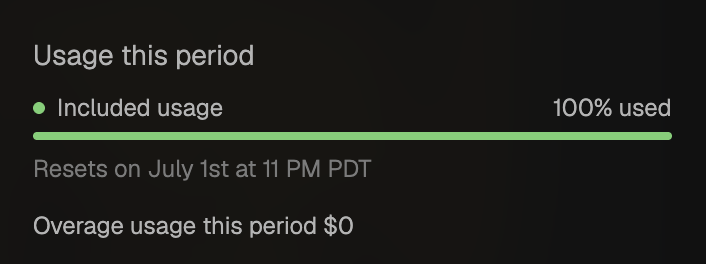
On **People & Seats**, the **Usage this period** section shows included usage for the current cycle, your **reset date**, and any overage spend.
Usage this period — reset date and included usage
For more detail, open **Plan & Usage**. That page shows:
* **Current plan** — your plan name and monthly usage budget
* **Extra usage** — balance from referrals, promotions, or grants. Consumed after your monthly budget each cycle, and doesn't expire.
* **Usage History** — exact dollar cost per generation, project, and member, useful for client billing and team budgets
* **Next Billing** — your next billing date and amount, with a **Manage** button to open your Stripe billing portal (admin only)
### Pooled or per-member usage
By default, every paid seat in a workspace draws from the same shared usage pool. Workspace admins have additional controls on the **Plan & Usage** page:
* **Pooled or per-user budgets.** Switch between a single shared pool (the default) and per-user budgets at any time.
* **Per-member caps.** Set a dollar cap on any individual member to prevent one person from draining the pool.
* **On-demand spending (Overage).** Opt in to keep generating after the monthly budget runs out. Set a **max overage** cap for the billing period. Self-serve workspaces are charged when unpaid overage crosses billing thresholds (not only at cycle end) — see [How on-demand billing works](/plans-and-billing/pricing.md#when-self-serve-workspaces-are-charged) in the pricing guide.
### Why do I see no usage budget?
This is almost always because you're viewing the wrong workspace. If your plan is active and the budget shows empty:
1. Click the **workspace selector** in the top-left corner.
2. Look for the workspace that has your active plan (check the plan type shown next to each workspace name).
3. Switch to that workspace — your usage budget will appear in the header and under **Plan & Usage**.
## Creating a Workspace
To create a new workspace, click the **workspace selector** and select **Create a new workspace** at the bottom. The setup has three steps:
1. **Name** — choose a name for your workspace (minimum 3 characters).
2. **Plan** — select a billing plan.
3. **Invite team** — optionally invite team members by email. You can skip this step and invite people later.
## Inviting Team Members
Make sure you're in the correct workspace before inviting anyone. You can invite from two places:
* The **member count badge** in the top-right of the dashboard
* The **Invite** button on the People & Seats page
### Invite methods
* **Email** — enter one or more email addresses (separated by commas, semicolons, or spaces), choose a role, and send.
* **Link** — copy a shareable invite link. You can choose between an **edit link** or a **view link**.
### Roles
| Role | Label | Permissions |
| ------ | -------- | ---------------------------------------------------------------------------------------------------------------- |
| Admin | Admin | Full permissions — manage billing, settings, and all workspace features. Can invite admins, editors, and guests. |
| Editor | Can edit | Can edit projects and invite editors and guests. Cannot manage billing. |
| Guest | Can view | View-only access. Cannot edit projects or invite others. |
## Workspace Settings
To access workspace settings, click the **settings icon** (gear) in the workspace header. Admin-only settings include:
* **Rename workspace** — edit the workspace name directly.
* **Upload logo** — click the workspace avatar to upload a custom image.
* **Model Access Control** — choose whether new AI models are available by default (opt-out) or must be manually enabled (opt-in), with per-model toggles.
Any member can **leave a workspace** from the settings page, as long as it's not their only workspace.
> **Note:** Workspaces cannot be deleted. If you no longer need a workspace, you can leave it.
---
# Agent Instructions
This documentation is published with GitBook. GitBook is the documentation platform designed so that both humans and AI agents can read, navigate, and reason over technical content effectively. Learn more at gitbook.com.
## Querying This Documentation
If you need additional information that is not directly available in this page, you can query the documentation by asking a question.
Perform an HTTP GET request on the following URL with the `ask` and `goal` query parameters:
```
GET https://docs.flora.ai/faqs-how-to.../workspaces.md?ask=&goal=
```
`ask` is the immediate question: it should be specific, self-contained, and written in natural language.
`goal` is what the user is ultimately trying to achieve, the reason they need the answer. Sharing it helps GitBook give you a better, more relevant answer. A goal is most helpful when it describes the outcome the user wants rather than restating the question. For example, with `ask=how do I create an API token`, a goal like `automate deployments from our CI pipeline` lets GitBook tailor the answer to that use case.
The response will contain a direct answer to the question and relevant excerpts and sources from the documentation.
Use this mechanism when the answer is not explicitly present in the current page, you need clarification or additional context, or you want to retrieve related documentation sections.