> For the complete documentation index, see [llms.txt](https://docs.flora.ai/llms.txt). Markdown versions of documentation pages are available by appending `.md` to page URLs; this page is available as [Markdown](https://docs.flora.ai/plans-and-billing/pricing.md).
# How Pricing Works
**Starter and above** include a monthly usage budget (denominated in dollars) for **text, image, video, audio, and other models** in the app. One usage bar. No per-generation math in the flow. Usage resets each month — it doesn't carry over.
The **Free** plan is for trying the canvas: **text and image models** only (no video models in the app), **limited complimentary generations** for exploration — not a monthly dollar allowance — plus **no ongoing generation through the FLORA API or MCP** (that starts on **Starter**). A Free account can still connect [FLORA MCP](/mcp.md) to an AI agent and generate on the **$2.50 of usage** every new workspace gets (video still needs a paid plan). See [flora.ai/pricing](https://flora.ai/pricing) for the current free-generation cap and footnotes.
## Plans
| Plan | Price | Monthly usage per seat | Max seats |
| ---------- | ------- | ---------------------- | --------- |
| Free | $0 | — | 1 |
| Starter | $18/mo | $18 | 8 |
| Pro | $50/mo | $50 | 8 |
| Max | $200/mo | $200 | 8 |
| Enterprise | Custom | Custom | Custom |
{% hint style="info" %}
**Plan features compared.** The table above covers price, usage, and seats — for the full feature comparison (workspace controls, team features, support tiers, etc.), see [flora.ai/pricing](https://flora.ai/pricing).
{% endhint %}
Starter, Pro, and Max can be billed **monthly, quarterly, or yearly**. Quarterly saves 10% and yearly saves 20% compared with monthly. Those plans share the same published per-generation rates for every model your plan can access in the app, and **Starter and above** include **API & MCP**. **Free** stays on **text and image** in the product, **explore-only generation limits**, and **no ongoing API or MCP generation** (beyond the $2.50 of usage every new workspace gets). FAUNA is free on every plan, always — it doesn't count against your budget.
Using FLORA from an AI agent like Claude, ChatGPT or Cursor? Generations through [FLORA MCP](/mcp.md) draw from the same budget at the same rates. See [FLORA MCP cost, balance and limits](/mcp/cost-and-limits.md).
## How Usage Works
**On paid plans,** your monthly budget is denominated in dollars. When you run a generation, the model's cost is deducted from your budget. You see a simple percentage bar in the header — by default, no dollar amounts in the generation flow, no per-generation math. If you'd rather see exact costs, toggle **Preferences → Show generation costs in dollars** to replace the flower meter with the per-run dollar amount on every model and Run button. See [Model Pricing](/plans-and-billing/model-pricing.md#show-exact-dollar-amounts).
**What counts as usage.** Any generation from an AI model — images, video, audio, text — based on the model's published cost. FAUNA messages and interactions don't count against your budget on any plan.
**Input image charges.** Some image models add a small fixed charge for each input image you give them, such as reference images for an edit. On most of these models every image counts; a few include one or more images in the base cost. The same image used twice counts once.
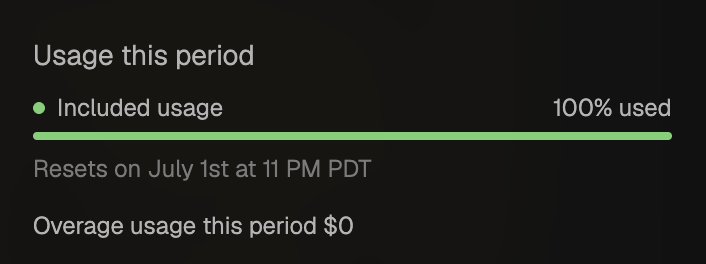
**Where to see your usage.** A live percentage bar lives in the app header. Open **Settings → People & Seats** and scroll to **Usage this period** to see included usage for the current billing cycle, how much is left, when your budget **resets**, and any overage for the period.
People & Seats → Usage this period
**Usage History** (under **Plan & Usage**) shows exact dollar cost per generation, per project, and per member — useful for client billing or team budgets.
**Model costs.** A public model pricing page lists the rate for every model we support, so you can compare if you want to plan around a specific workflow.
## Teams
Every paid plan includes team collaboration, and each seat adds both cost and budget based on your plan's per-seat rates.
**Example (Pro plan):**
* Pro costs **$50 per seat/month**
* Pro includes **$50 usage per seat/month**
* So a 4-person Pro workspace = **4 x $50 = $200/month** and **4 x $50 = $200/month shared budget**
Admins have control over how usage flows inside a workspace:
* **Pooled or per-user.** By default, everyone draws from the same shared pool. Admins can switch to per-user budgets at any time.
* **Per-member caps.** Set a dollar cap on any individual member to prevent one person from draining the pool. When a personal limit is set, that member's usage indicator in the app header shows their individual usage percentage (or "Limit reached" when the cap is hit) with a tooltip explaining the admin-set limit.
Self-serve plans go up to 8 seats. Beyond that, [Enterprise](#enterprise) gives you a custom seat count plus admin, security, and advanced features.
## Extra Usage (On-Demand Spending)
When your monthly budget runs out, you have two options: upgrade your plan, or turn on on-demand spending (called **Overage** in workspace settings).
On-demand is:
* **Opt-in.** Disabled by default. Workspace admins enable it in **Settings → People & Seats**.
* **Capped.** You set a **max overage** limit for the billing period so there are no runaway charges.
* **Card-required (self-serve).** A payment method must be on file. Enterprise accounts on invoice billing follow your contract instead.
* **Same price as included usage.** No markup — you pay the published model rates.
### Your max overage cap
The max overage setting is the most extra usage you allow **in the current billing period** — not just what is unpaid at the moment.
* Flora tracks **total overage this period** (everything above your included budget and wallet balance, whether or not it has been invoiced yet).
* When total overage would exceed your cap, **new generations stop** until the next billing period.
* When total overage **reaches** your cap, any remaining balance is **billed** and overage stops for the rest of the period.
If your cap is **lower** than your workspace's monthly subscription total, the cap controls both spending and billing. If your cap is **higher**, you can still be charged earlier when other thresholds are met (see below).
Paying an overage charge does **not** reset your cap for the period — only your subscription renewal starts a fresh overage tally.
### When self-serve workspaces are charged
For Starter, Pro, and Max workspaces paying by card, overage is **not** held until the end of the billing cycle. Charges happen when enough unpaid overage has built up:
1. **Max overage reached** — total overage this period hits the limit you set.
2. **Large unpaid balance** — unpaid overage reaches **$200** (a system safety threshold).
3. **Subscription-sized chunk** — unpaid overage reaches your workspace's **monthly subscription total** (plan price × editor seats; for annual billing, Flora uses the monthly equivalent). Example: one editor on Starter ($18/mo) is charged when about **$18** of overage is unpaid; four editors on Pro ($50 × 4 = $200/mo) is charged when about **$200** of overage is unpaid.
4. **Daily balance check** — if unpaid overage is still **more than $5** but has not hit the thresholds above, Flora attempts to collect it once per day (around 8:15 AM UTC).
You may see **multiple charges in one period** as you keep generating — especially when your max overage is higher than your subscription total. Each charge covers what was unpaid at that moment; your period total keeps counting toward your cap.
Charges appear on your card through Stripe. Open **People & Seats → Manage & Invoices** to view invoices and payment history.
If a subscription payment fails, **new overage charges pause** until billing is healthy again. Existing prepaid or wallet balance is not removed.
### Auto top-up
On Starter, Pro, and Max, a billing admin can turn on **Auto top-up** in **Settings → People & Seats**. When your balance falls below the threshold you set, FLORA charges your saved card the amount you chose and adds it to your wallet. You can also cap how much auto top-up adds per billing period. A saved payment method is required.
If a generation starts while an auto top-up charge is still processing, it waits for the charge instead of failing.
### Enterprise overage billing
On Enterprise, overage is **off by default**. FLORA turns it on for your workspace and sets its spending cap as part of your contract; your billing admin can then enable it in **People & Seats**.
Enterprise workspaces without overage can **top up** instead. On **People & Seats**, a billing admin clicks **Add credits** under **Top up** and buys a one-time top-up of $100 to $5,000 by card (presets: $100, $250, $500, $1,000). If your enterprise is billed by contract only, the button reads **Add credits – contact sales**, and our sales team adds credits to your contract. Auto top-up isn't available on Enterprise.
Enterprise overage follows your contract. Most enterprise workspaces receive **invoices** (not automatic card charges) on a **monthly or quarterly** schedule tied to the contract start date, with payment terms set in your agreement (commonly net 60). The **People & Seats** overage settings show the next scheduled invoice date when invoice billing applies.
Some enterprise setups use the same threshold rules as self-serve, but still bill via invoice rather than an immediate card charge. Your account team can confirm which model applies to your workspace.
## Enterprise
For organizations that need a custom seat count, SSO, admin controls, audit logs, invoice billing, and the rest. Negotiated annually. [Contact us](https://flora.ai/contact) to start a conversation.
***
## Further Reading
* [Pricing FAQ](/plans-and-billing/faq.md) — common questions about plans, usage, and billing
* [Manage Subscription](/plans-and-billing/manage-subscription.md) — change, upgrade, or cancel your plan
* [flora.ai/pricing](https://flora.ai/pricing) — full feature comparison across plans
## Questions?
* General:
* Enterprise: [flora.ai/contact](https://flora.ai/contact)
---
# Agent Instructions
This documentation is published with GitBook. GitBook is the documentation platform designed so that both humans and AI agents can read, navigate, and reason over technical content effectively. Learn more at gitbook.com.
## Querying This Documentation
If you need additional information that is not directly available in this page, you can query the documentation by asking a question.
Perform an HTTP GET request on the following URL with the `ask` and `goal` query parameters:
```
GET https://docs.flora.ai/plans-and-billing/pricing.md?ask=&goal=
```
`ask` is the immediate question: it should be specific, self-contained, and written in natural language.
`goal` is what the user is ultimately trying to achieve, the reason they need the answer. Sharing it helps GitBook give you a better, more relevant answer. A goal is most helpful when it describes the outcome the user wants rather than restating the question. For example, with `ask=how do I create an API token`, a goal like `automate deployments from our CI pipeline` lets GitBook tailor the answer to that use case.
The response will contain a direct answer to the question and relevant excerpts and sources from the documentation.
Use this mechanism when the answer is not explicitly present in the current page, you need clarification or additional context, or you want to retrieve related documentation sections.