> For the complete documentation index, see [llms.txt](https://docs.flora.ai/llms.txt). Markdown versions of documentation pages are available by appending `.md` to page URLs; this page is available as [Markdown](https://docs.flora.ai/editor/collaboration-and-sharing.md).
# Collaboration & Sharing
## Real-Time Collaboration
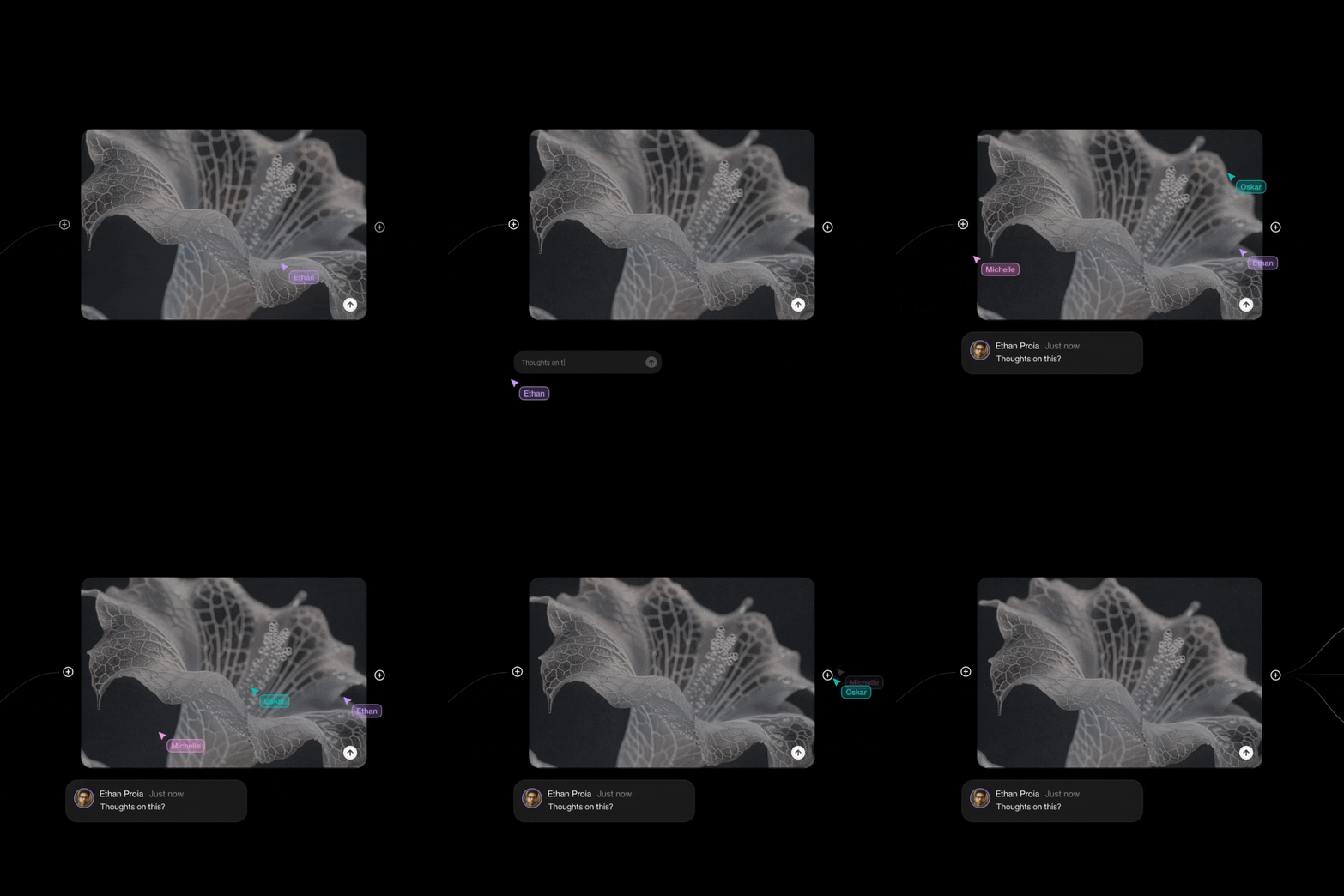
FLORA is optimized for team collaboration. Our canvas supports multiple team members to work on the same design file simultaneously. Changes are visible in real time, ensuring that everyone stays on the same page without version conflicts.
## Comments
Leave comments right on the canvas, so feedback sits next to the work it's about.
When you comment on a node, the comment opens already tagged with that node, so feedback stays tied to it.
### Start a thread
* **Toolbar** — pick the **Comment** tool (or press **C**) and click anywhere on the canvas. See [Toolbar](/editor/toolbar.md#comment).
* **On a node** — hover a node and click its **Comment** button to start a thread attached to that node.
* **Right-click** — choose **Add comment** on the canvas or on a node.
### Reply and resolve
Click a comment pin to open its thread and reply. When the conversation is done, choose **Resolve thread**. You can bring it back later with **Reopen thread**.
### Mention people
Type **@** to mention a teammate. To bring in someone who isn't in the project yet, type or paste their **email address** after **@**. They get an email with your comment and a link to the thread, where they can read it and reply — no FLORA account needed.
### Share a link to a thread
Use **Copy link** on a thread to copy a direct link to it. If the project has no link sharing yet, copying the link turns on view-and-comment link sharing for the project.
### Notifications
The project owner gets an email when someone starts a new thread. Participants hear about replies, and anyone you mention is notified. Comments that arrive close together are grouped into one email. To turn these emails off, go to **Settings → Preferences** and switch off **Comment email notifications**.
## Share
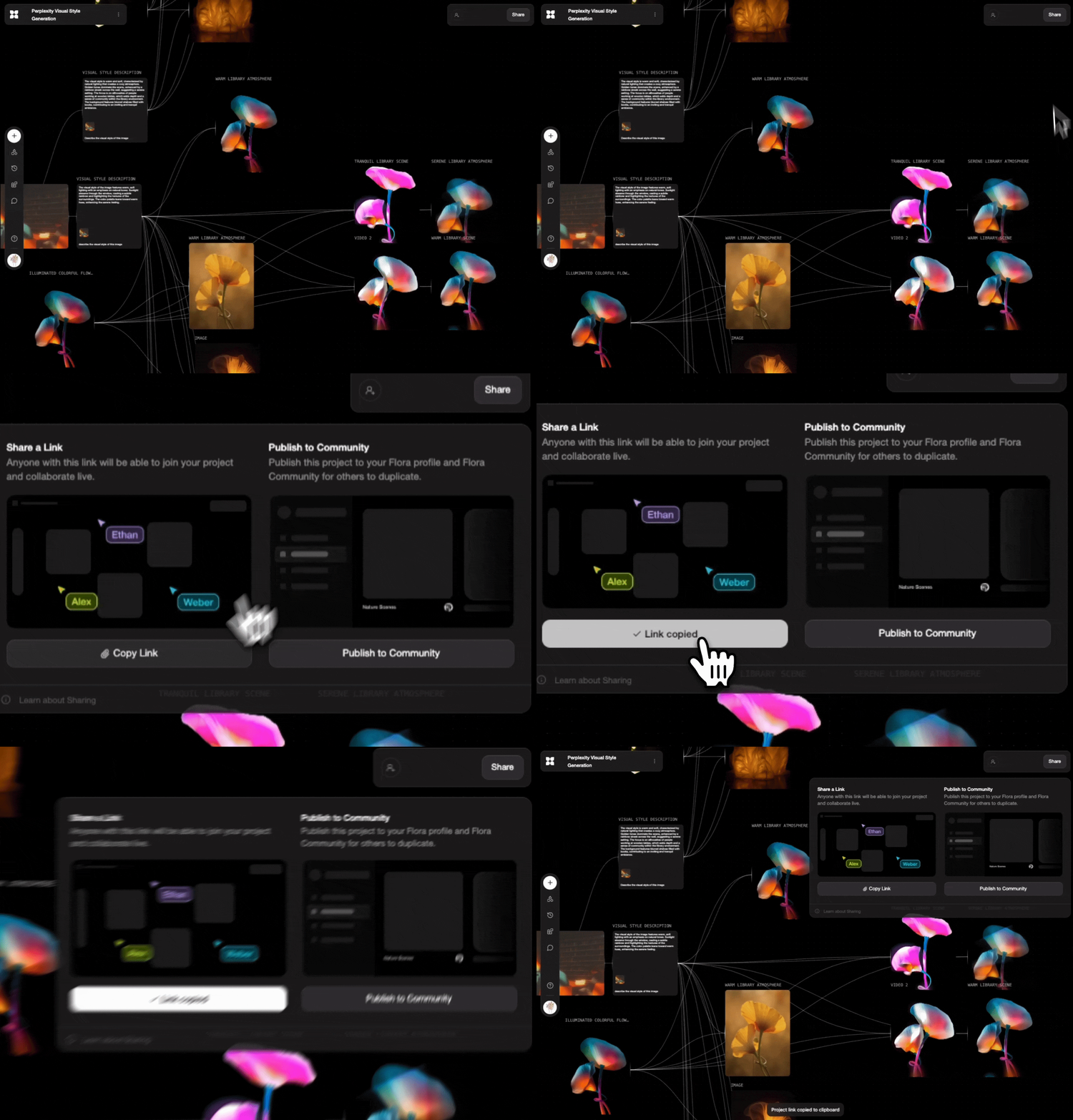
You can **share your project** via copying the link or you can **publish your project** to the community page.
### Share a link
To copy the link, click **Share** in the top right corner of the canvas, then click **Copy Link**.
### Protect a link with a passphrase
You can require a passphrase before anyone can open your share link.
1. Open the project's **Share** menu.
2. Set link access to **Anyone with link can view** or **Anyone with link can edit**.
3. Tick **Passphrase protect this link**.
4. Type a passphrase, then press Enter or click outside the field to save it.
Visitors who open the link see an **Enter passphrase** screen. A wrong passphrase shows an error, and too many wrong tries pause the link for a moment.
* **People already in the project's circle skip the passphrase.** This covers the project owner, project members, members of the project's workspace, and anyone you invited by email.
* **FLORA never stores the passphrase itself**, only a salted hash. Once saved, it can't be shown again. Type a new one to replace it.
* **To remove the passphrase,** untick **Passphrase protect this link**.
### Copy link to selection
You can copy a link that opens the canvas framed on specific nodes, so collaborators land on the right spot.
* **Selection toolbar:** select two or more nodes and click the link icon (**Copy link to selection**).
* **Right-click menu:** right-click one or more selected nodes and choose **Copy link to selection**.
Whoever opens the link lands on the version of the project their access allows, framed on those nodes. If the project isn't shared by link yet and you can manage its sharing, copying the link turns on view-and-comment link sharing. Very large selections can't be linked; select fewer nodes.
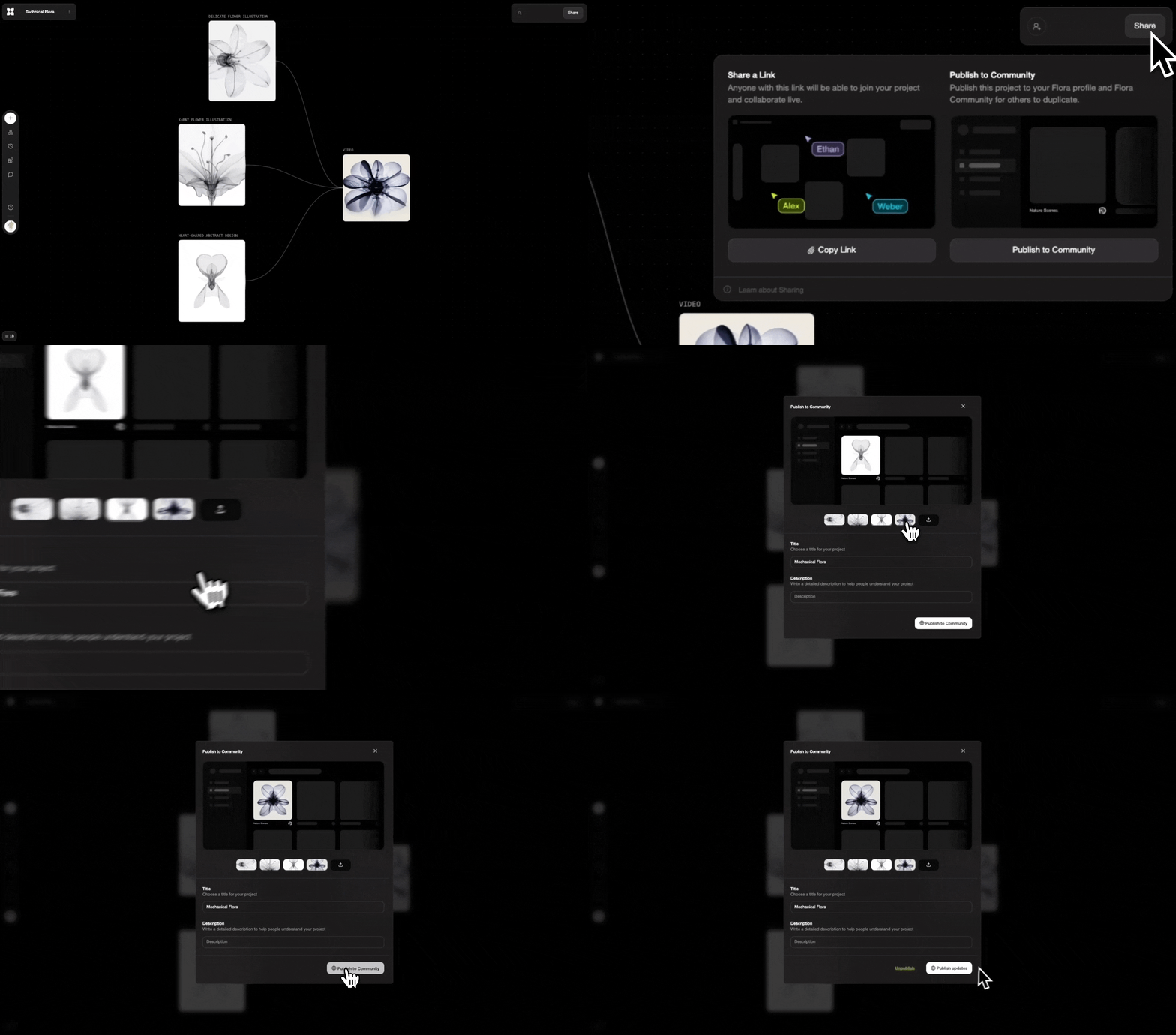
### Publish to Community
To publish to community, click **Share** in the top right corner of the canvas and open the **Publish** tab. This makes your project visible to all FLORA users on the Community page.
### Publish an image to Explore
Explore is a public feed of images shared by the FLORA community. It's on the **Home** page of your dashboard.
1. Select an image node and click **Share** (paper plane icon) in its toolbar.
2. Click **Publish to Explore**.
The image's prompt and model are shown on Explore. Publishing needs a paid plan. To take the image down, open the same dialog and click **Unpublish**. The share link keeps working after you unpublish.
On Explore, click an image and choose **Open in canvas** to start a new project from it. You can also browse Explore from the **Explore** tab of the asset library on your canvas. Images you publish also appear on the **Images** tab of your community profile.
### Share with the API
You can also share a project from your own code with the [FLORA API](/api.md): [share a project by link](/api/reference/projects/shareproject.md) for view or edit access, [read its sharing state](/api/reference/projects/getprojectsharing.md), or [change or turn off sharing](/api/reference/projects/updateprojectsharing.md), including link comments and a passphrase. Edit links need a plan that includes editable sharing.
---
# Agent Instructions
This documentation is published with GitBook. GitBook is the documentation platform designed so that both humans and AI agents can read, navigate, and reason over technical content effectively. Learn more at gitbook.com.
## Querying This Documentation
If you need additional information that is not directly available in this page, you can query the documentation by asking a question.
Perform an HTTP GET request on the following URL with the `ask` and `goal` query parameters:
```
GET https://docs.flora.ai/editor/collaboration-and-sharing.md?ask=&goal=
```
`ask` is the immediate question: it should be specific, self-contained, and written in natural language.
`goal` is what the user is ultimately trying to achieve, the reason they need the answer. Sharing it helps GitBook give you a better, more relevant answer. A goal is most helpful when it describes the outcome the user wants rather than restating the question. For example, with `ask=how do I create an API token`, a goal like `automate deployments from our CI pipeline` lets GitBook tailor the answer to that use case.
The response will contain a direct answer to the question and relevant excerpts and sources from the documentation.
Use this mechanism when the answer is not explicitly present in the current page, you need clarification or additional context, or you want to retrieve related documentation sections.